
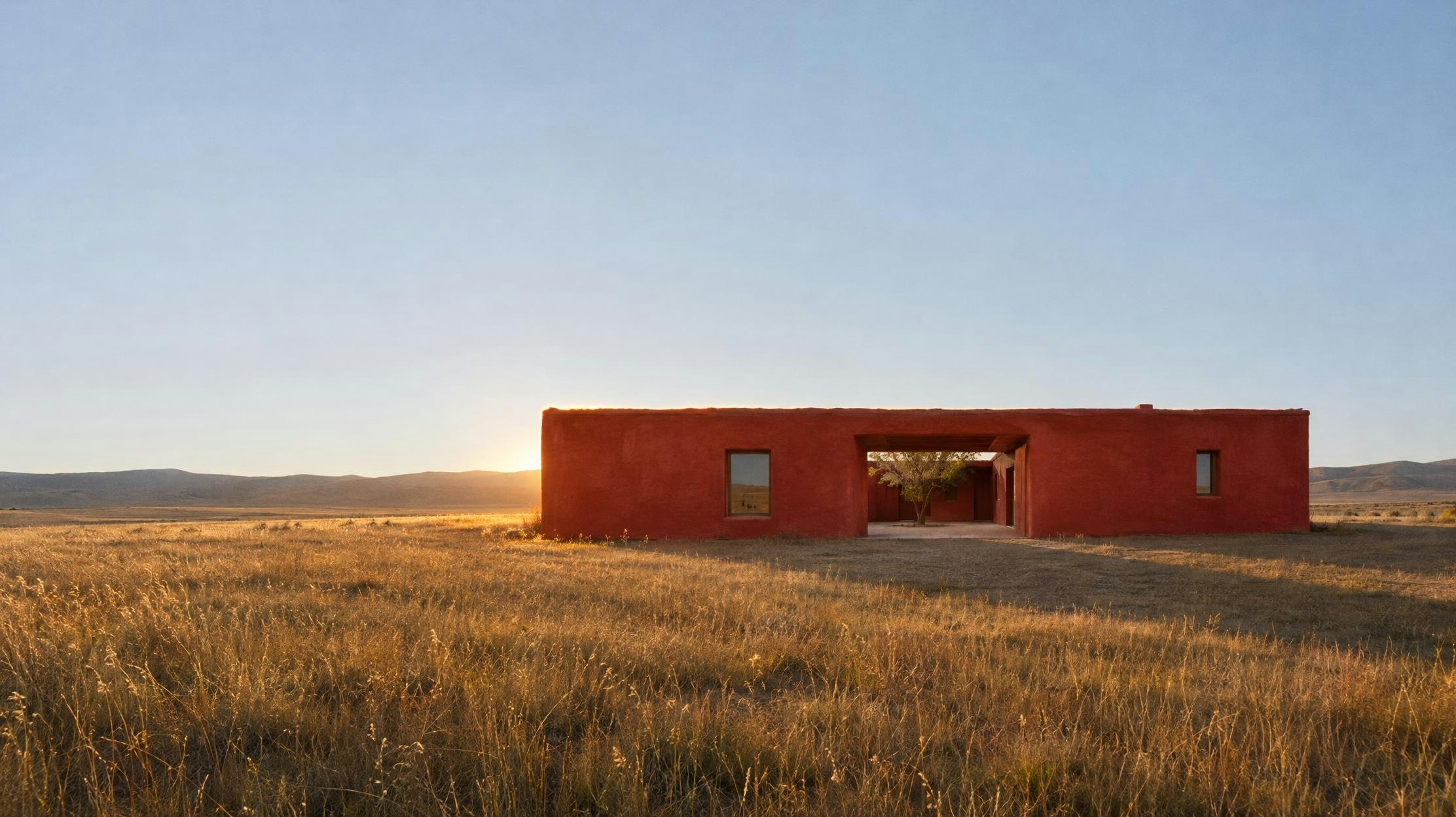
GPT Image 2.6: refine one image, edit by edit

Refine one image, edit by edit, with OpenAI's GPT Image 2.6 on Leonardo.Ai. Mark what to change with Annotate, then build on each result.

A cluster of pink oyster mushrooms on a fuchsia ground, crossed by bands of slatted light. Made with GPT Image 2.6 Sunburst.
OpenAI logoGenerate

Mark the change with Annotate

Open your image, choose Annotate and draw on the part you want to change. Then say what the marks mean in your prompt, such as "add a yellow float in this lane".

An outdoor lap pool seen from above, with a red loop and arrow drawn in Annotate inside one lane. Pool made with GPT Image 2.6 Sunburst.
The same pool after an Annotate edit that adds a yellow ring float where the loop was drawn. Made with GPT Image 2.6 Sunburst.
MarkedEdited

Build on each result

Add the last result as an image reference and describe the next change. Name what should stay the same in each prompt, like the planter, the tiles and the light. Add up to 16 image references in one generation.

Round 1: a young lemon tree in a cobalt planter on terracotta tiles, against a sunlit white wall. Made with GPT Image 2.6 Sunburst.Round 1
Round 2: the same lemon tree in white blossom, in the same planter and light. Made with GPT Image 2.6 Sunburst.Round 2
Round 3: the same lemon tree hung with ripe lemons, in the same planter and light. Made with GPT Image 2.6 Sunburst.Round 3

Plan the layout in your prompt

Describe the layout in your prompt: where the product sits, what is behind it and where to leave space for text. Then pick one of 10 aspect ratios, from 21:9 to 9:16.

A colour-blocked poster that reads KILNWORKS, Ceramics fair, 14–16 May. Made with GPT Image 2.6 Flare.Poster
A cut-crystal carafe on a zinc bar lit by one violet neon tube. Made with GPT Image 2.6 Flare.Product

Flare or Sunburst

Pick GPT Image 2.6 Flare for fast rounds of edits.

Pick GPT Image 2.6 Sunburst for detailed visual work.

Both share the same controls, so you can try a prompt on each.

Specs

GPT Image 2.6 specs

Flare and Sunburst share these specs and cost.

GPT Image 2.6 specs
InputText and images
Image referencesUp to 16
Aspect ratios21:9, 16:9, 3:2, 4:3, 5:4, 1:1, 4:5, 3:4, 2:3, 9:16
Maximum resolution2880 × 2880 at 1:1, 3808 × 1632 at 21:9
QualityLow, Medium, High, Extra High, Max
Images per generation1 to 8
Transparent backgroundSupported
Prompt lengthUp to 9,999 characters

QuestionsaboutGPTImage2.6FAQS

What is GPT Image 2.6?

On Leonardo.Ai, you make and edit images with GPT Image 2.6, OpenAI's image model, in two versions: Flare and Sunburst. Add up to 16 image references, make up to 8 images at once and choose from 10 aspect ratios.

Can I edit one image over several rounds with GPT Image 2.6?

Yes. Open the image, choose Annotate, mark the part to change and describe the change in your prompt. Or add the last result as an image reference and describe the next change. Name the details you want to keep in each prompt.

How much does GPT Image 2.6 cost on Leonardo?

The cost depends on the image size, the quality, the number of images and the number of image references. The generation panel shows the exact cost before you generate. Flare and Sunburst cost the same.

What is the difference between GPT Image 2.6 Flare and Sunburst?

Choose Flare for fast rounds of edits, or Sunburst for detailed visual work. Both have the same controls and the same cost on Leonardo.Ai.

Can GPT Image 2.6 make transparent backgrounds?

Yes. Turn on Transparency in Advanced Settings, and you get a PNG with a transparent background. Leave it off to get a JPEG. See the transparent PNG generator for more.

Can I use GPT Image 2.6 through the Leonardo API?

Yes. Both versions, GPT Image 2.6 Flare and GPT Image 2.6 Sunburst, are in the Leonardo API.

How is GPT Image 2.6 different from GPT Image 2.5?

On Leonardo.Ai, you can use GPT Image 2.6 or GPT Image 2.5 as separate models with the same core controls: up to 16 image references, five quality levels, up to 8 images at once and Annotate. Run the same prompt and image references on both and compare.
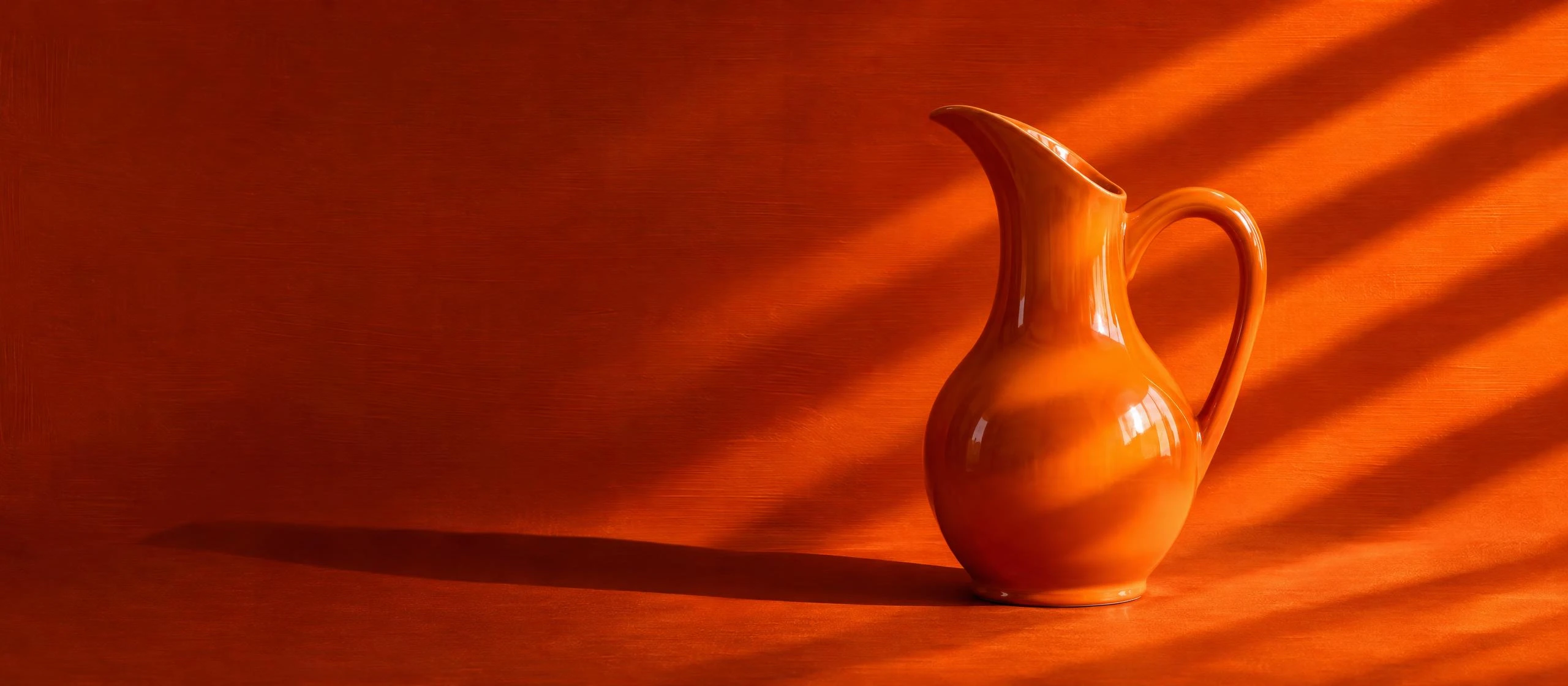

A glossy orange pitcher on an orange ground, crossed by bands of slatted light. Made with GPT Image 2.6 Sunburst.

Refine your image, edit by edit.

Start from a prompt or your own image, and keep going round by round.