MAI Image 2.7: change one thing, keep the rest

In MAI Image 2.7 on Leonardo.Ai, edit your image one detail at a time, or make a cut-out with a transparent background.

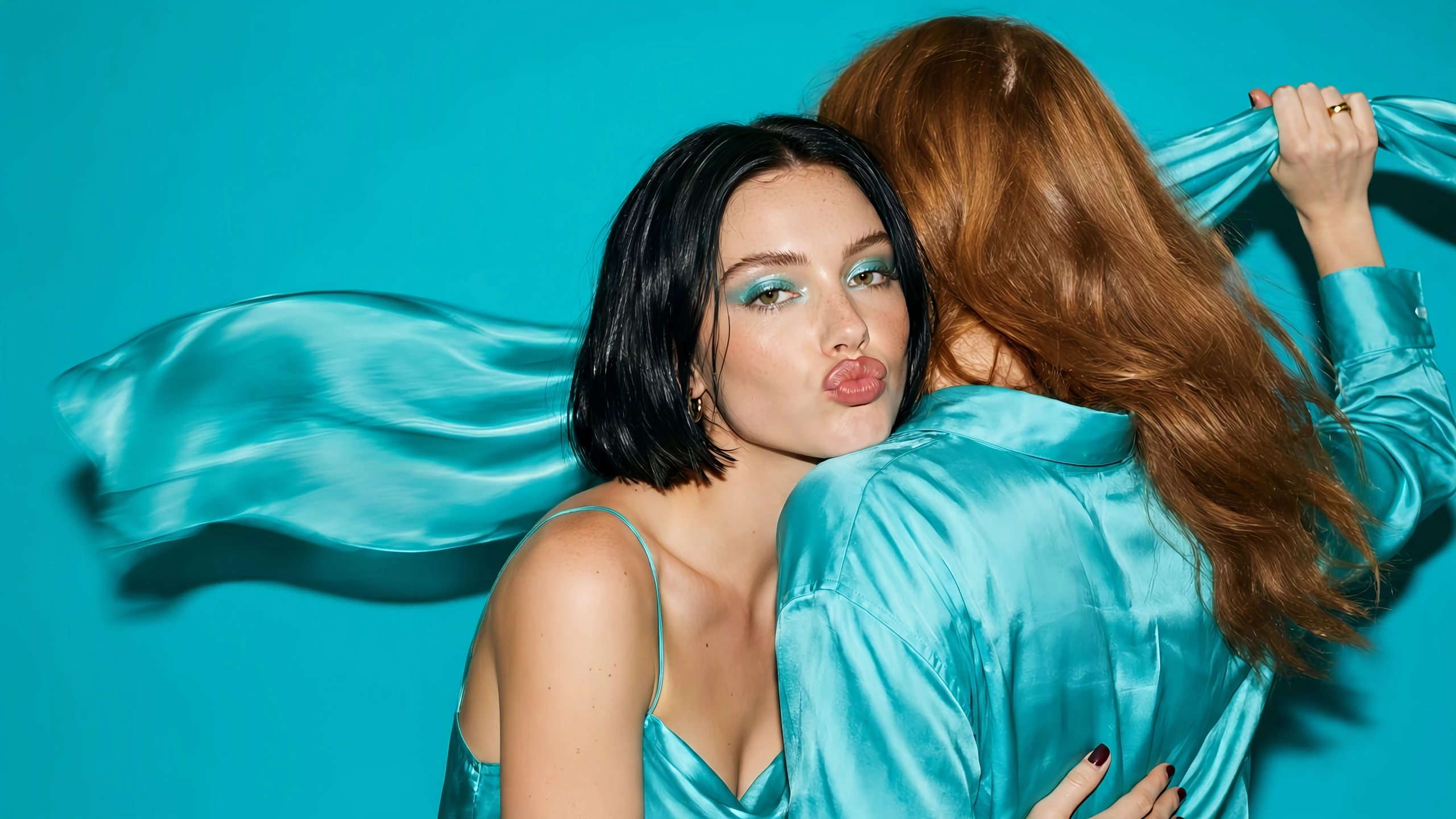
Two young women in aqua satin against a flat aqua backdrop, lit by a camera flash: one rests her chin on the other's shoulder and pouts at the camera, while her friend spins away with a silk scarf. Made with MAI Image 2.7.
Microsoft logoMAI Image 2.7Generate

Keep editing, and nothing else moves

Add your image as an image reference and name the change: a colour, a material, the words on a sign. The light, the framing and everything you did not name stay where they were. Then edit the result again.

A close-up of a man's face, eyes closed behind round sunglasses with thick glossy orange frames and dark lenses, lit hard from the left against black. Made with MAI Image 2.7.Your image
The same portrait after one edit: the lenses are now clear orange glass, so his closed eyes show through, with the same frames and light. Made with MAI Image 2.7.Clear lenses, same frames
The same portrait after a second edit: the frames are now thin polished gold wire, and the clear orange lenses stay the same. Made with MAI Image 2.7.Gold frames, same lenses

Cut-outs ready for your layout

Turn on Transparency and get a PNG with no background, ready to drop onto a product page, a slide or a sticker sheet.

A square yellow glass perfume bottle on its side, with a white ranunculus in its neck, on a transparent background. Made with MAI Image 2.7.Product
The word squimbi in glossy lime green balloon letters, on a transparent background. Made with MAI Image 2.7.Logo
A matte cream clay camera icon with a glossy cobalt blue lens, on a transparent background. Made with MAI Image 2.7.Icon
Specs

MAI Image 2.7 specs

What you can make in one MAI Image 2.7 generation on Leonardo.

MAI Image 2.7 specs
InputText and images
Image referencesUp to 5
Aspect ratios21:9, 16:9, 3:2, 4:3, 1:1, 3:4, 2:3, 9:16
Maximum resolutionSizes: Small and Medium, or a custom size up to 4.2 megapixels.2048 × 2048 at 1:1, 3104 × 1328 at 21:9Sizes: Small and Medium, or a custom size up to 4.2 megapixels.
QualityOne setting
Images per generation1 to 8
Transparent backgroundSupported
Prompt lengthUp to 9,999 characters

QuestionsaboutMAIImage2.7FAQS

How do I edit an image with MAI Image 2.7?

On Leonardo, add your image as an image reference, then say in your prompt the one thing to change. The rest of the image stays as it was, and you can add up to 5 image references to one generation.

Can MAI Image 2.7 make images with a transparent background?

Yes. Turn on Transparency on Leonardo to get a PNG with a transparent background for a product, a logo or an icon. Leave the background out of your prompt.

What sizes can MAI Image 2.7 make?

Pick one of eight aspect ratios on Leonardo, from 21:9 to 9:16, up to 2048 × 2048 for a square. A custom size runs from 768 to 5456 pixels a side, up to about 4.2 megapixels, so a wide banner at 5456 × 768 works too.

How much does MAI Image 2.7 cost?

You see the exact token cost on Leonardo before you generate. It depends on the image size, how many images you make and how many image references you add.

Can I use MAI Image 2.7 in the Leonardo.Ai API?

Yes. You can generate with MAI Image 2.7 through the Leonardo.Ai API.

Should I use MAI Image 2.7 or GPT Image 2.6?

Pick MAI Image 2.7 on Leonardo for very wide or tall images, up to 5456 × 768, with up to 5 image references. Run the same prompt on GPT Image 2.6 to compare.

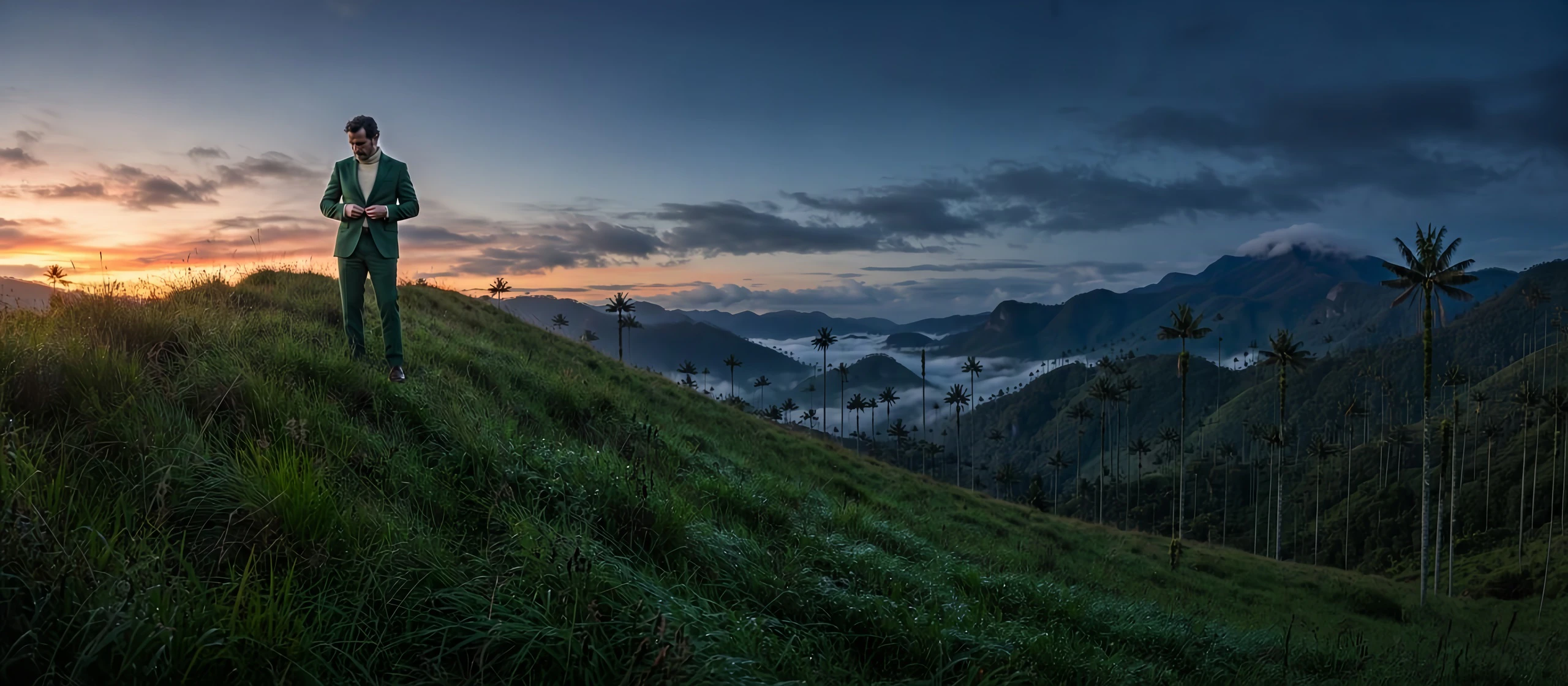
A man in a green suit buttons his jacket on a grassy slope at dusk, above the fog and wax palms of Colombia's Cocora Valley. Made with MAI Image 2.7.

Edit your image in MAI Image 2.7

Add your image and name the first change.