High-Quality Video Output
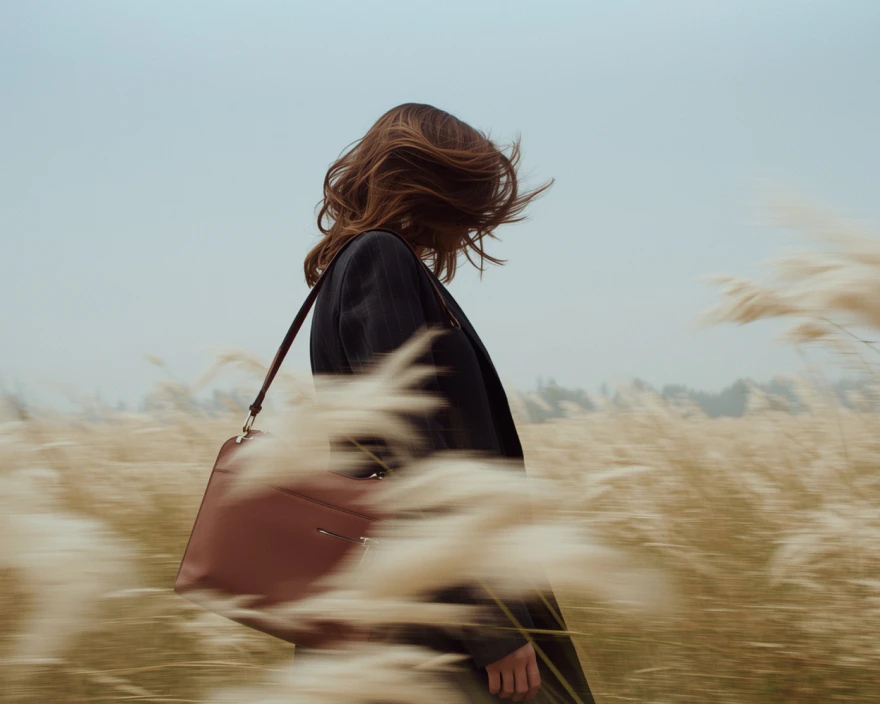
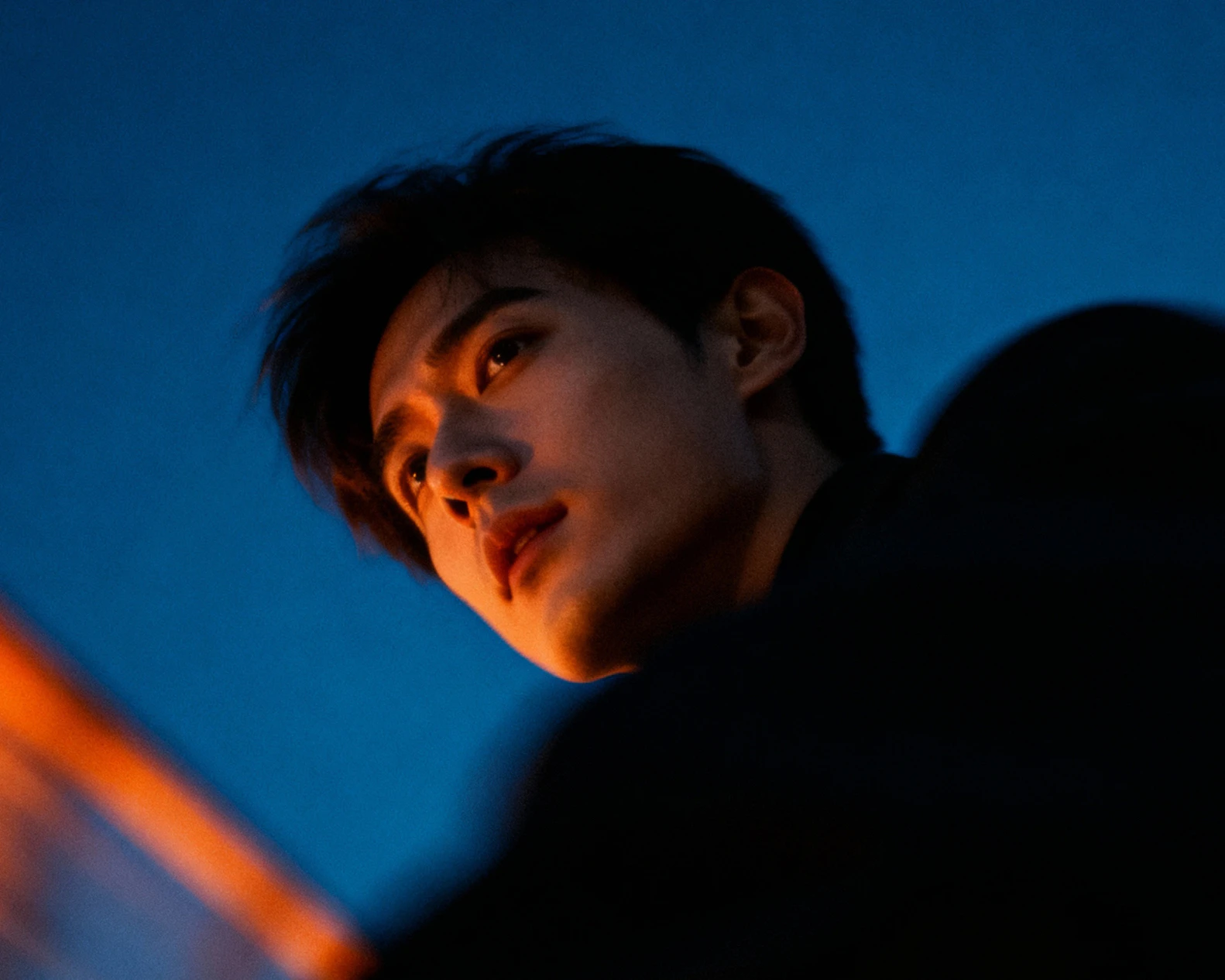
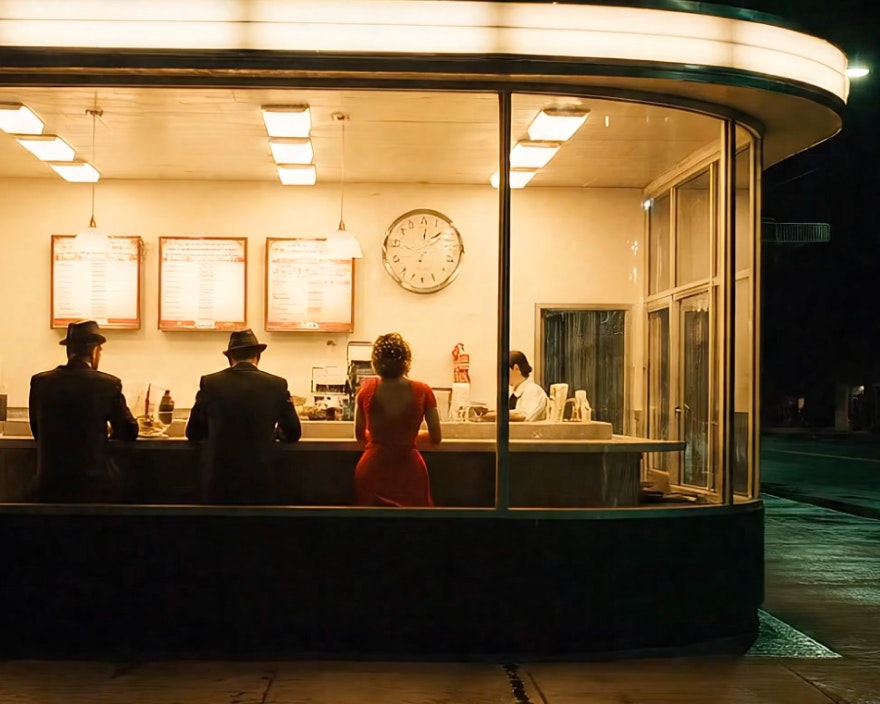
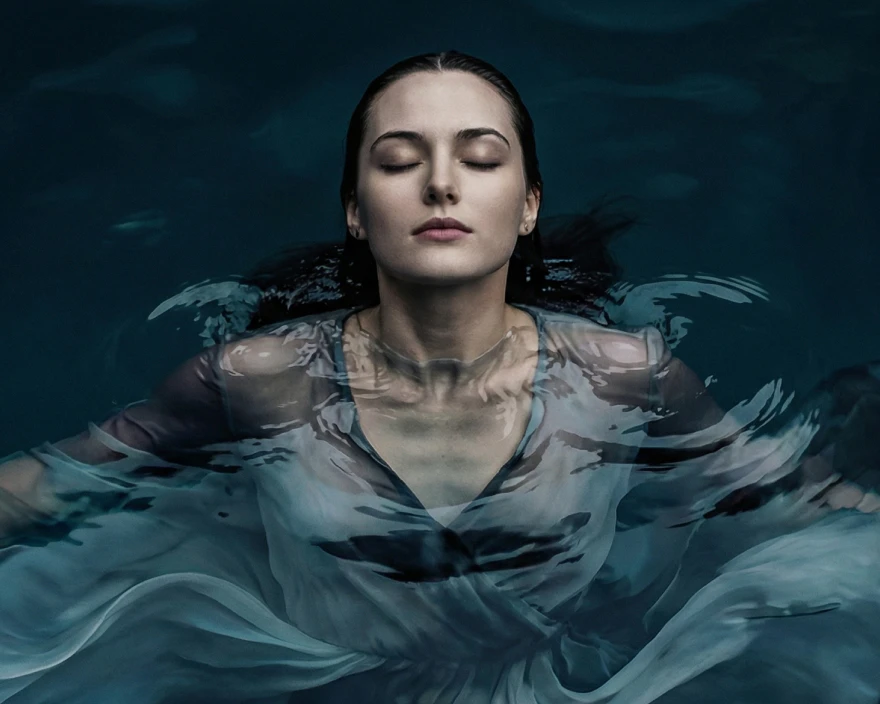
Photorealistic motion with synchronized audio in one seamless process.

Prompt Precision
Veo 3.1 follows detailed direction on lighting, subjects, movement, and sound.
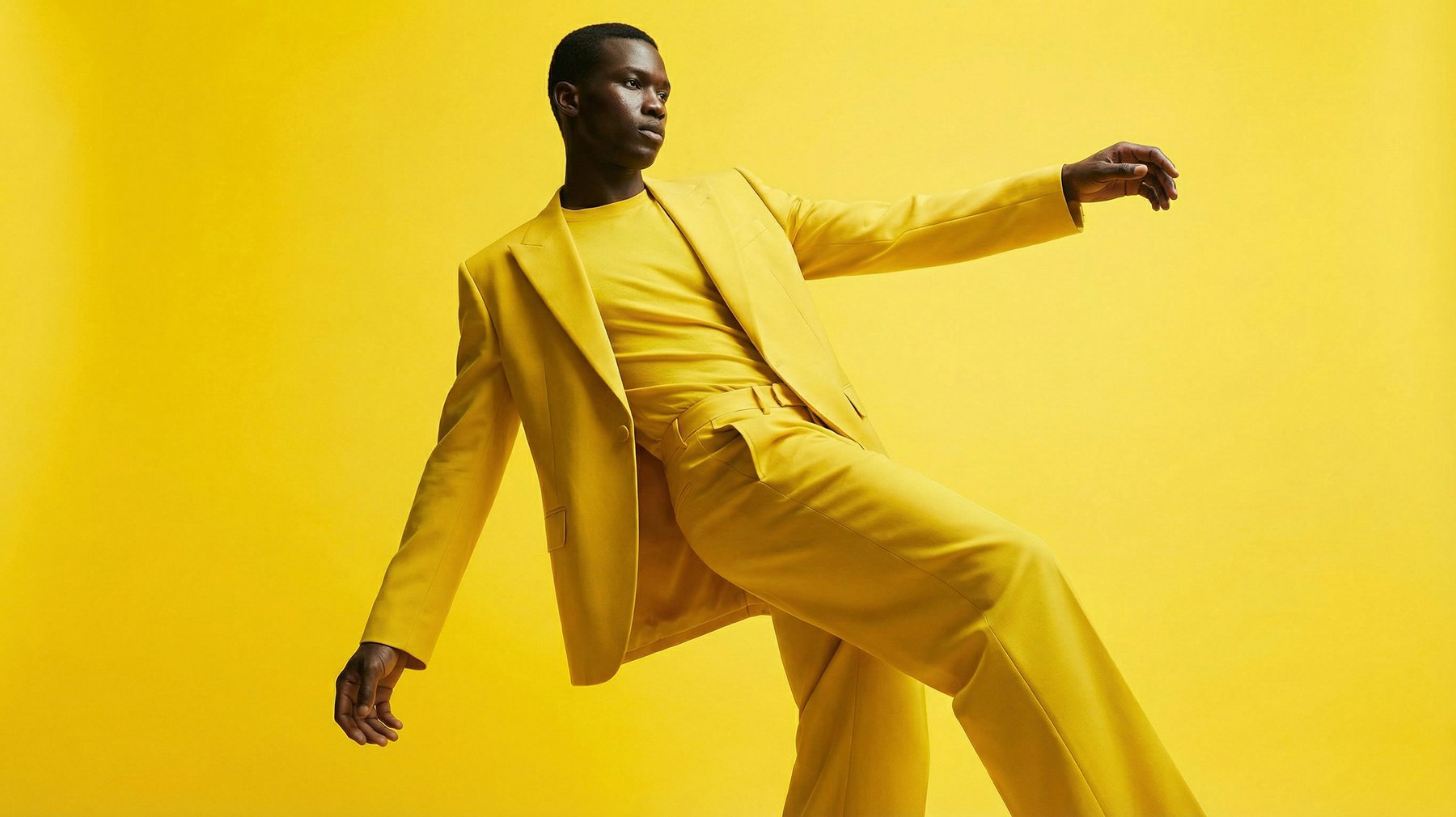 Start frame
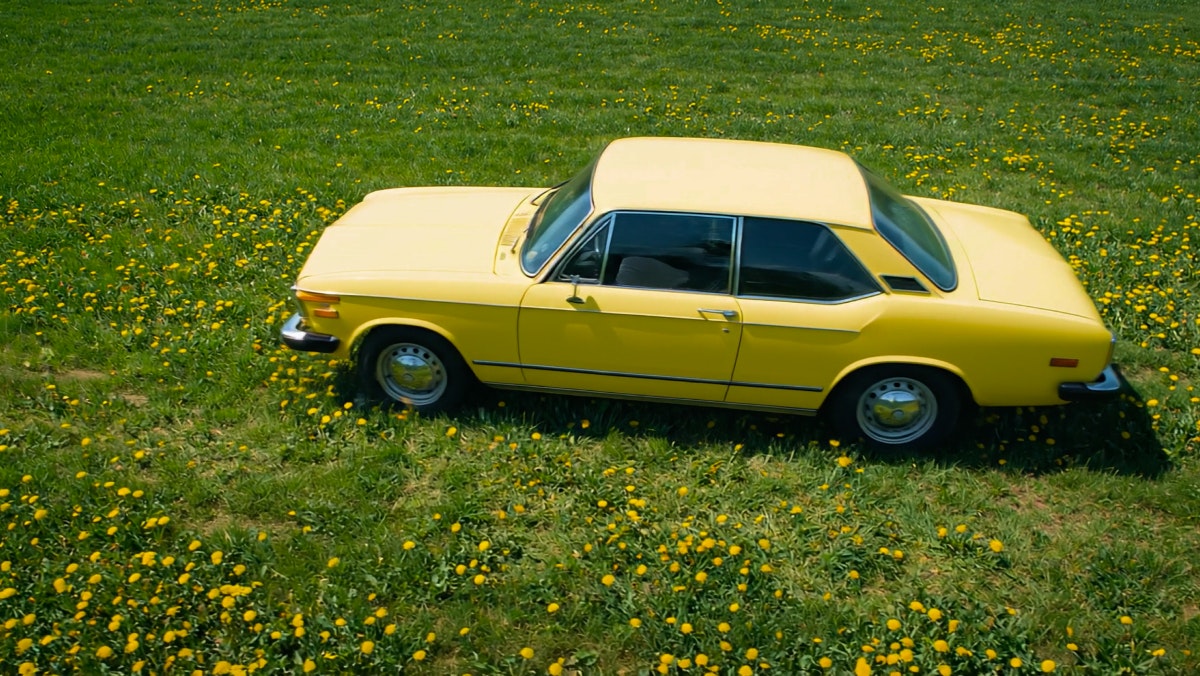 Start frame
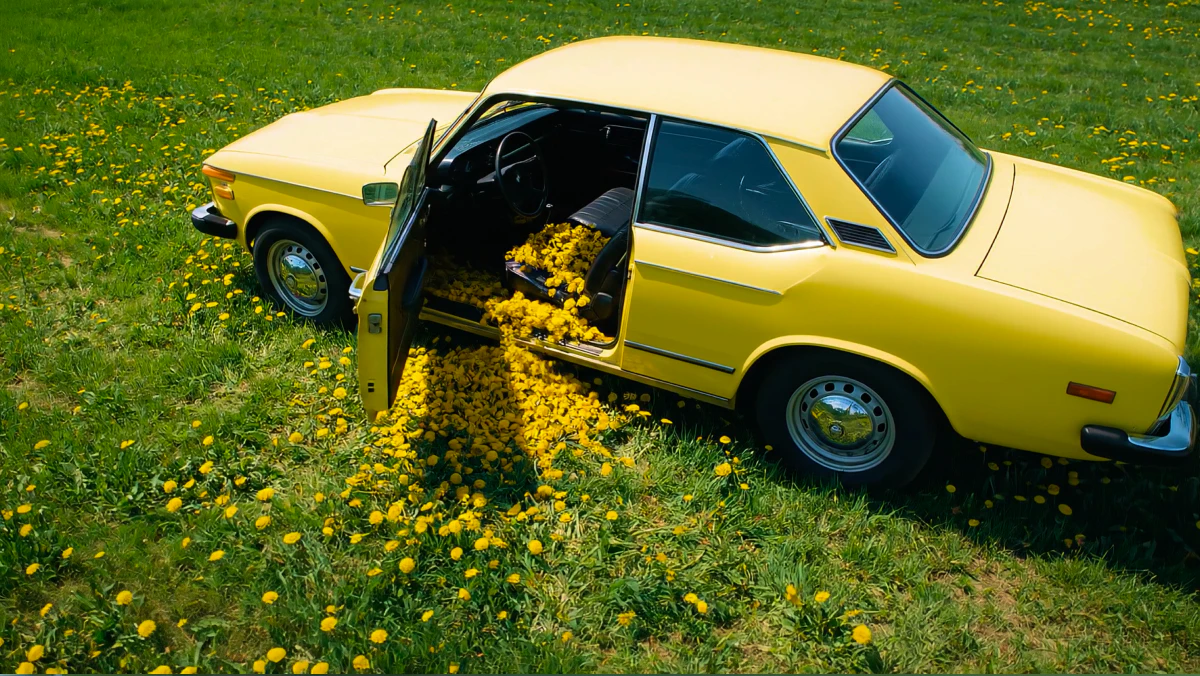 End frame
A cinematic scene set at night: a glamorous woman with an afro hairstyle and gold jewellery shares a luxurious outdoor pool with a calm alligator. The pool area is surrounded by classical statues and large blue ceramic vases, all dimly lit. The camera starts at water level and slowly zooms in on the woman’s face as she makes intense eye contact with the camera. The lighting is moody and soft, with candlelight reflections on the water and a subtle fill light on her face.
Veo3.1VideoGenerationFAQS
How do I use Veo 3.1 on Leonardo.Ai?
Select Veo 3.1 or Veo 3.1 Fast as your video model in Leonardo, then enter a text prompt or upload an image reference and generate your video. Refine results by adjusting your prompt or using start and end frames for more control. Learn more in our guide to mastering prompts for Veo 3.
What is the token cost of using Veo 3.1 on Leonardo.Ai?
Veo 3.1 token cost scales with your video’s duration and whether audio is enabled. The exact cost for your chosen settings is shown in the generation panel before you generate.
Why use Veo 3.1 on Leonardo.Ai instead of Google’s platforms?
Leonardo combines Veo 3.1 with image and design tools in a single workflow, so you can iterate faster and get more from each generation.
What’s the difference between Veo 3.1 and Veo 3?
Veo 3.1 builds on Veo 3 with end-frame control, stronger prompt adherence, and improved synced audio. Google has retired the original Veo 3 model, so Veo 3.1 and Veo 3.1 Fast are the versions available on Leonardo.Ai.
Does Veo 3.1 generate sound?
Yes. With Veo 3.1, you can add synchronized sound to your video straight from your prompt. Check out our guide with tips for prompting for audio with Veo 3.
How do I create a start or end frame for Veo 3.1?
Upload or generate your start and end frames, then use them as anchors for your scene.
Where can I access Veo 3.1?
Veo 3.1 is available globally through Leonardo.Ai accounts.