How to Add AI Music and Voiceovers to Your Videos
How To | Published on | Last updated on
5 min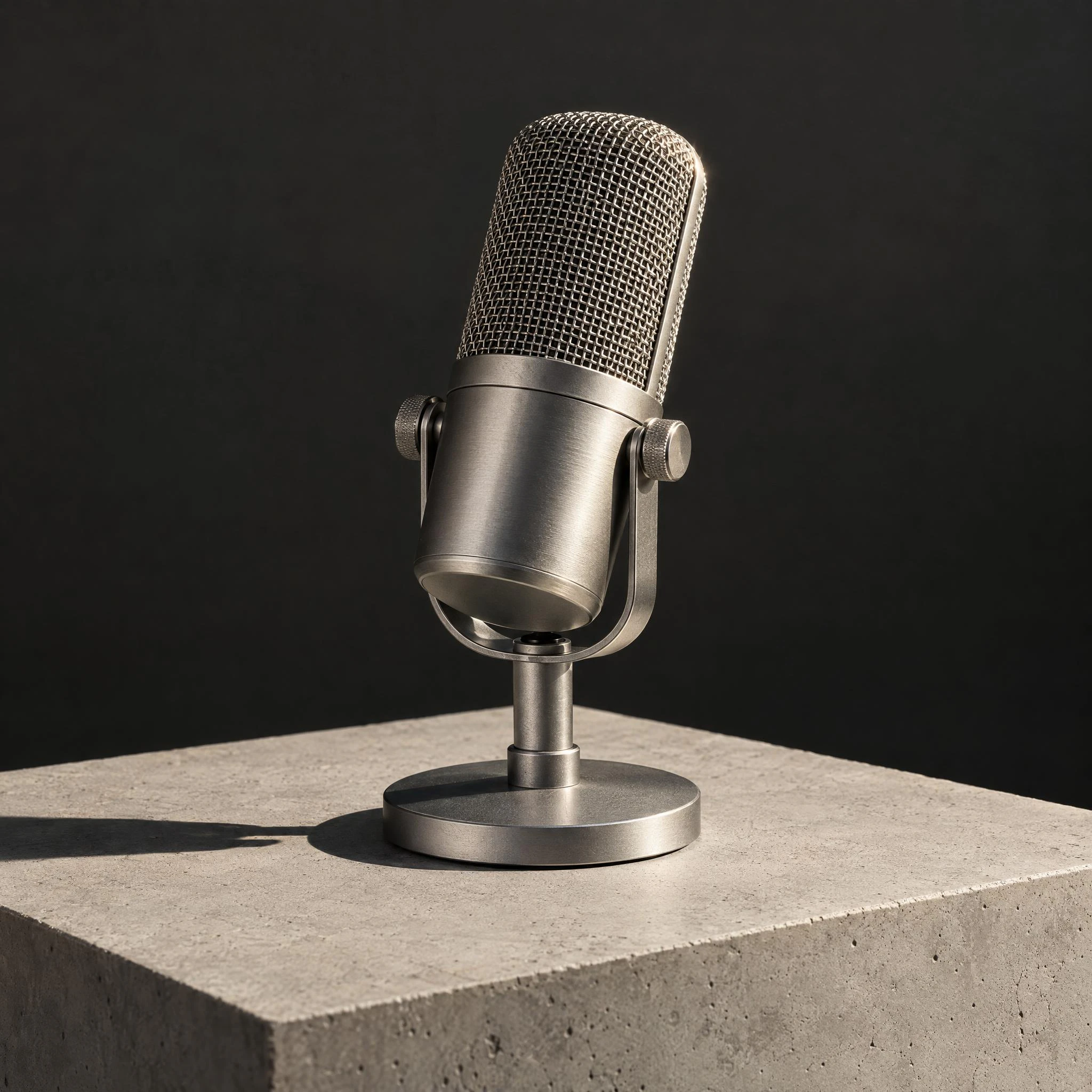
You wrote the perfect prompt, generated a great-looking clip — and it plays in total silence. That’s the moment most AI videos die. Sound carries half the emotion of any video, and a silent clip reads as unfinished no matter how good the visuals are.
The good news: you don’t need a separate audio tool or a stock-music subscription. Leonardo.Ai handles the sound side too, three different ways — video models that generate synced audio natively, a music model for full soundtracks, and a voice model for narration.
Here’s how each one works, and when to reach for it.
Three Ways to Get Sound in Leonardo
1. Generate Video With Audio Built In
The fastest route is to pick a video model that generates sound as part of the video itself — dialogue, ambience, and effects synced to the action, no editing required.
Leonardo always offers the latest state-of-the-art video models, and many generate native synced audio, including Seedance 2.5, Kling 3.0 Turbo, MiniMax H3, and FLUX 3 Video. Pick one in the AI Video Generator, describe the scene — including what you want to hear — and the audio arrives already matched to the visuals.
Not every model outputs sound, though, and even the ones that do only give you the sound you asked for. If your clip came out silent, the model is the first thing to check — and the next two options work with any clip.
2. Create a Soundtrack With Music v1
Need a mood-setting track under your edit — a lo-fi loop for a product demo, something cinematic for a trailer? Music v1 is the music model on Leonardo. Describe the style and feel you’re after and generate a track anywhere from one to ten minutes long, with vocals or fully instrumental. Try it on the AI Music Generator page.
Because you’re generating the track rather than licensing a stock one, it’s made for your video — and you’re not digging through a library hoping something fits.
3. Add a Voiceover With Seed Audio 1.0
Music sets the mood; narration carries the story. Seed Audio 1.0 handles voiceover on Leonardo: write your script, choose from a library of AI voices, and direct the pace, pitch, and volume of the read. Product demos, explainers, story videos — narrated without ever recording a word.
This is the piece most AI video workflows are missing. A clip with a score and a voice feels produced, not generated.
Step by Step: From Silent Clip to Finished Video
Here’s the full workflow, whether you’re starting from a prompt or an image.
- 1. Start your video. Open the AI Video Generator for text-to-video, or Image to Video to animate a still.
- 2. Pick your model deliberately. Want sound baked in? Choose a model with native synced audio, such as Seedance 2.5, Kling 3.0 Turbo, or MiniMax H3. Planning to score it yourself? Any video model works — you’ll add audio in the next steps.
- 3. Prompt for the ear as well as the eye. With an audio-capable model, describe the soundscape in your prompt — “rain hammering a tin roof, distant thunder” gives the model something to sync to.
- 4. Generate your soundtrack. Head to the AI Music Generator, describe the genre, mood, and energy, and generate with Music v1. [REVIEW: verify the exact Music v1 entry point in the app UI]
- 5. Record nothing — generate your voiceover. Give Seed Audio 1.0 your script, pick a voice, and adjust the speed and pitch until the delivery fits. [REVIEW: verify the exact Seed Audio 1.0 entry point in the app UI]
- 6. Download and assemble. Download your video and audio, then line them up in your editor of choice. [REVIEW: confirm whether audio can be combined with video inside Leonardo or whether assembly happens in an external editor]
That’s it — a scored, narrated video from a single tool’s output.
Can You Use AI Music and Voiceovers Commercially?
Licensing is where AI audio gets murky on most platforms, so here’s the short version for Leonardo: on every plan, you can use what you generate commercially — audio included. Ownership is the nuance. On paid plans your generations are yours, and you can create in private mode to keep them fully private. Free-plan creations are public and remain Leonardo’s, with a royalty-free licence for you to use them — commercial work included. The Terms of Service has the fine print.
The free plan gives you 150 fast tokens that refresh daily — enough to experiment with video, music, and voiceover before committing to anything. Paid plans start at $10/month for Essential (billed yearly). Full details on the pricing page.
FAQs
Can I add AI music to videos for free?
Yes. Leonardo.Ai’s free plan includes 150 fast tokens that refresh every day, and you can use them across video, music, and voiceover generation. You can use free-plan generations commercially too — though ownership stays with Leonardo on the free tier; on paid plans your generations are yours.
Which Leonardo video models generate audio automatically?
Leonardo always offers the latest state-of-the-art video models, and many output native synced audio, including Seedance 2.5, Kling 3.0 Turbo, MiniMax H3, and FLUX 3 Video. Describe the sounds you want in your prompt and the model generates audio matched to the action.
Why is my AI video silent?
Either the model you chose doesn’t generate audio, or the prompt didn’t describe any sound. Switch to an audio-capable model and write the soundscape into your prompt — or keep your clip and add a Music v1 soundtrack and a Seed Audio 1.0 voiceover.
What’s the difference between Music v1 and Seed Audio 1.0?
Music v1 generates music — tracks up to ten minutes long, with vocals or fully instrumental, to run under your video. Seed Audio 1.0 generates speech: give it a script, pick an AI voice, and direct the pace and pitch. Most finished videos use both.
Can I add AI music to a video I made somewhere else?
Yes — generated tracks and voiceovers are downloadable audio, so they work in any editor with any footage, whether the video came from Leonardo or your camera roll. [REVIEW: confirm audio download formats available in app]
Ready to break the silence? Generate your first soundtrack with the AI Music Generator — try Leonardo.Ai for free today.
RelatedArticles
remove.bg API is Moving to Leonardo.Ai
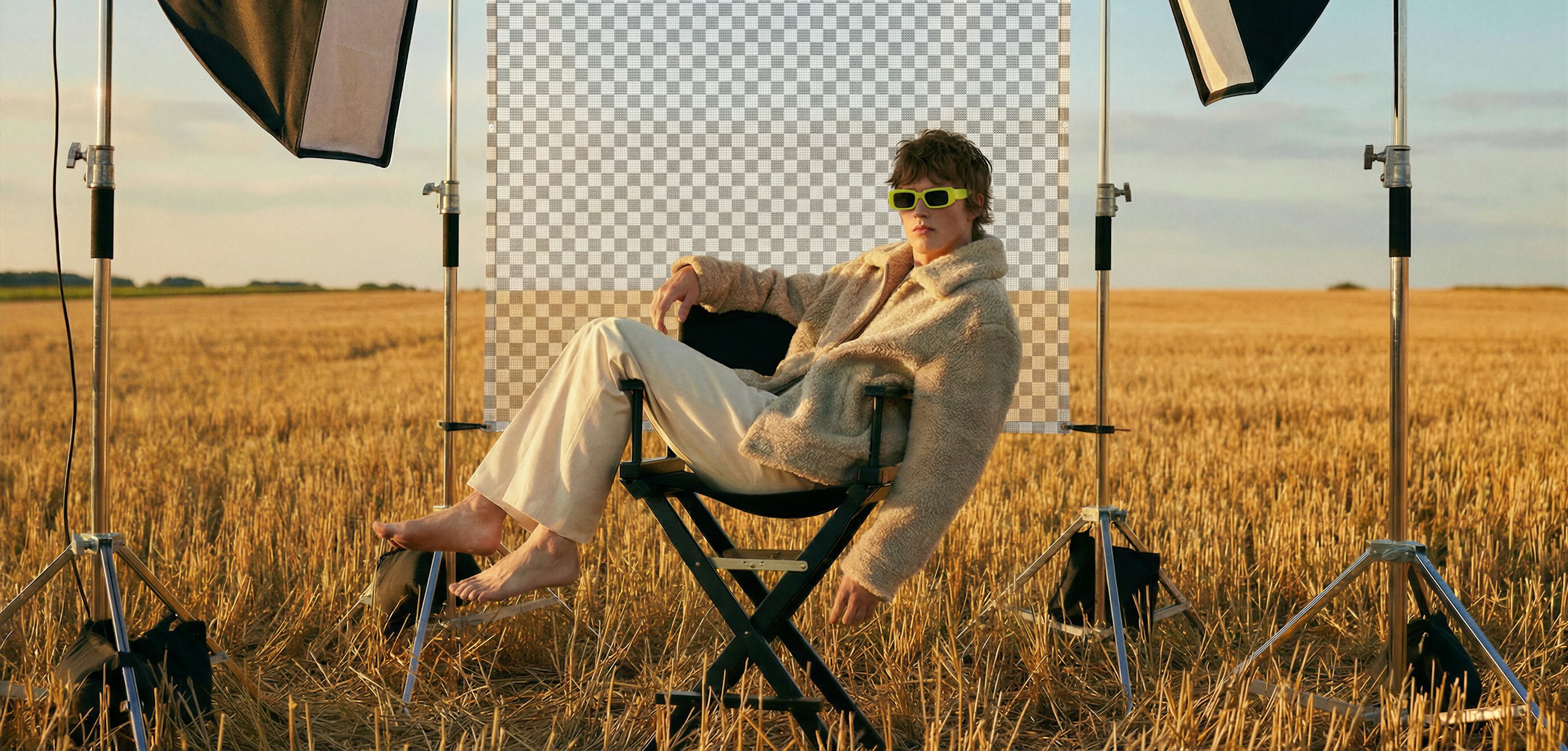
remove.bg's background removal API has joined Leonardo.Ai, also part of Canva. Everything you do today with the remove.bg API, you can do on Leonardo, plus upscaling, scene generation, and more.
How to Maintain Consistent Branding Across AI-Generated Content

How to Edit Videos With AI: Examples, Tools, and Best Practices

How to Use AI to Edit Photos: Examples & Best Practices
Whether you are designing a marketing campaign, updating a website, or simply trying to save a great shot with a distracting background, the raw image is rarely perfect on the first try. There is usually a minor detail standing in the way, such as a crop that feels too tight, a stray object breaking the […]